Photo editing
AI Background Remover
AI Background Remover isolates the main subject and creates a transparent PNG for portraits, product photos and new layouts.
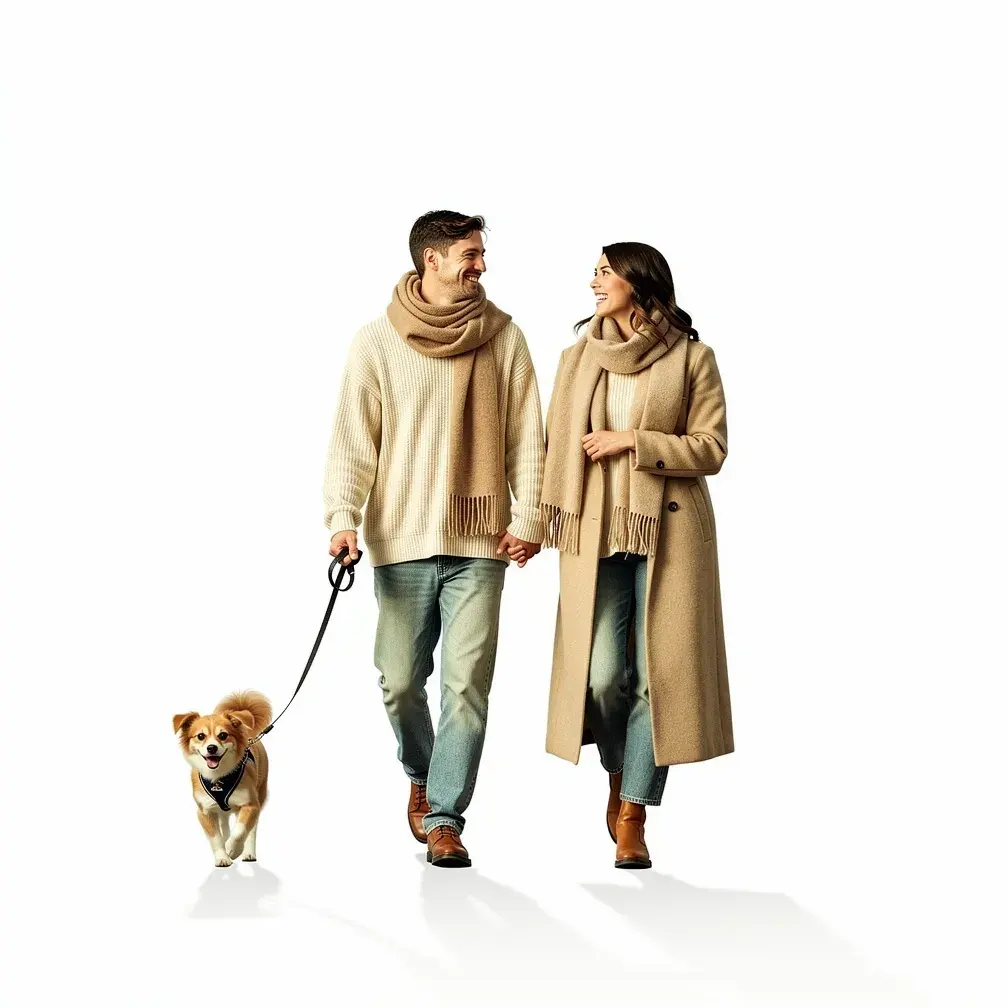
The output is a transparent PNG. Check hair, glass, shadows and fine edges; some details may be removed or left behind.
PNG, JPEG or WebP, up to 10 MB.
Results are private by default. Only upload material you have permission to use.
Loading image models…
Follow the content rules and review your result before sharing. Acceptable Use Policy
Use your own image or try the sample input.
AI Background Remover
AI Background Remover separates a person or object from the photo background and saves the cutout as a transparent PNG. Use it to prepare portraits, product images or subjects for a new design. Review fine edges before placing the cutout over a different background.
Choose a useful starting image
Choose a subject with a clear outline and space around it. Hair, glass and small gaps are harder to separate.
Ideas for your next creation
- Isolate a portrait to place it over a new color or layout for a profile, introduction or presentation.
- Prepare a product cutout for a shop image or design, checking small parts, reflections and the outline before publishing.
How to use this tool
Choose a clear reference, sign in and upload your image.
Check the model, size and displayed credit cost, then generate.
Check the cutout at full size and download the transparent PNG for your next design.
Before sharing your result
Place the transparent PNG over a light and a dark background to check the cutout. Inspect hair, glass and small gaps, and refine difficult edges in a photo editor if needed.
Questions before you start
Does the AI background remover produce a transparent cutout?
Yes. The tool removes the photo background and produces a PNG with transparency. Download the original result and place it over another background to see the cutout. A white area in an image preview does not by itself show whether the file is transparent.
How can I improve difficult hair or glass edges?
Choose a well-lit photo with a clear outline and contrast between subject and background. Hair, glass, reflections, shadows and small gaps can be difficult to separate. Check those areas at full size; use an editor with manual selection tools for precise edge adjustments.
What photos can I upload?
The editing tools accept PNG, JPEG and WebP images up to 10 MB. A clear source image with a visible subject is a useful starting point. Upload only photos you own or have permission to edit, and keep your original file.
Can I use these image tools for free?
Sign in to generate images or videos. A Free account can use eligible gift credits and limited trials; the credit charge and current allowance are checked before generation.
What does the example artwork show?
The artwork shows a creative direction. It is visual inspiration, not a promise of the result from your own photo.